When the OS Pulls the Plug: Android State That Survives Process Death
Rotation is easy. Process death is where “cannot reproduce” crashes live. Here’s how to trigger, fix and test it.

Your app works on your phone. It crashes for users who switch apps for ten minutes.
Rotation is not the same as process death. Most apps pass the first and fail the second, and the gap between them is where a surprising share of “cannot reproduce” crash reports live.
Here is the pattern. A user opens your checkout flow, gets a text message, replies, checks a map, and comes back eleven minutes later. Meanwhile the system needed memory for the camera and quietly killed your process. When the user returns, Android rebuilds your Activity from a small saved Bundle into a brand-new process. Every object you were holding in memory is gone. If any screen assumed it was still there, you get a NullPointerException, an empty screen, or worse, a form that silently resets.
This post covers what actually happens, how to trigger it on demand, and how to design state so the app comes back whole.
1. Two different events
A configuration change and process death both end with your Activity being constructed again, which is why they get confused. They are very different underneath.
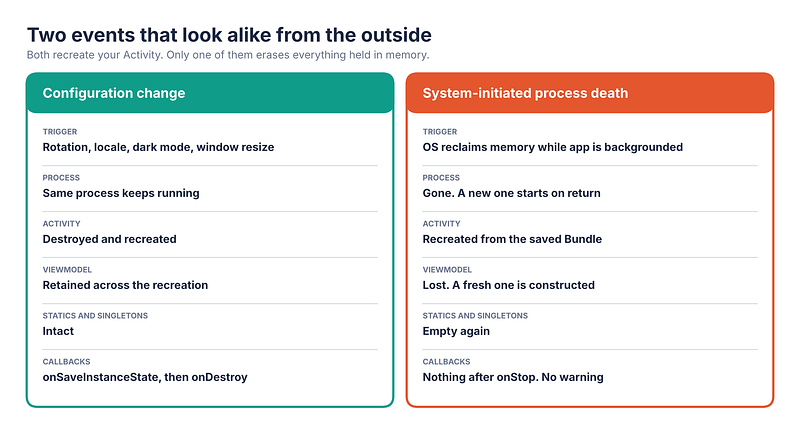
A configuration change (rotation, locale, dark mode, window resize) tears down and recreates the Activity inside the same process. The ViewModelStore is deliberately kept across that recreation, so a ViewModel and everything in its fields comes through untouched. Your singletons never noticed.
Process death happens while you are in the background. The system reclaims memory by killing your process, with no callback and no chance to clean up. What it keeps is each Activity’s saved-state Bundle, held outside your process. On return, the system starts a new process, runs Application.onCreate, and recreates the Activity with that Bundle.
Two details matter in practice:
- Since API 28,
onSaveInstanceStateruns afteronStop, not before. Earlier versions called it before. Either way, treat it as a snapshot of UI state, not a place to flush data you cannot lose. - The system only keeps saved state when it might need to restore it. If the user finishes the screen with Back, or swipes the task away, saved state is discarded on purpose.
2. What survives each
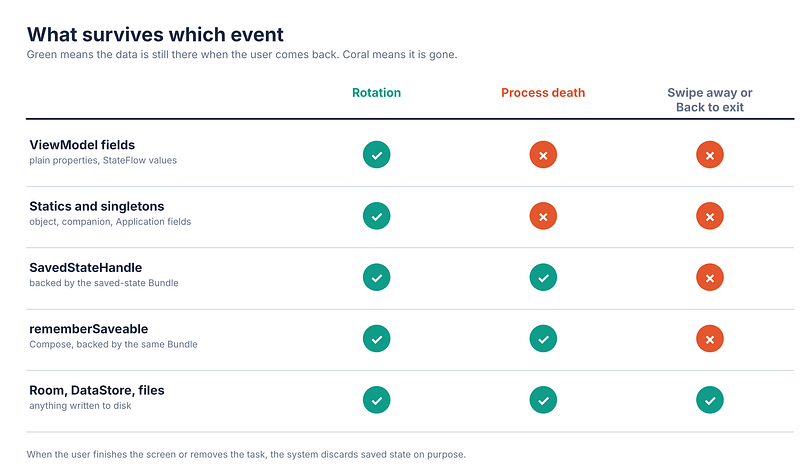
Read the middle column twice. ViewModel fields and singletons survive rotation and vanish on process death. The only things that survive process death are the saved-state Bundle (through SavedStateHandle or rememberSaveable) and anything written to disk.
The right-hand column is the other half of the story. Saved state is not durable storage. If the user swipes your app away, the Bundle is gone too. Anything the user would be upset to lose belongs on disk.
3. Reproduce it before you fix it
You cannot fix what you cannot trigger. Waiting for the system to kill your app is not a test strategy.
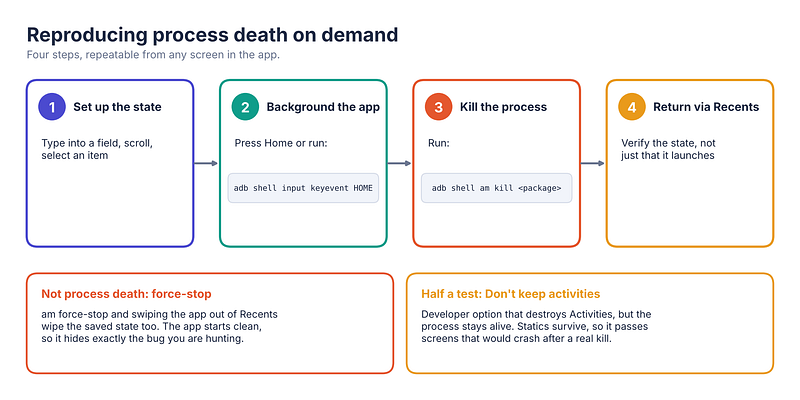
# 1. Navigate to the screen under test and create some state.
# 2. Send the app to the background (this matters; see below).
adb shell input keyevent HOME

# 3. Kill the process the way the system would.
adb shell am kill com.example.shop

# 4. Return through the Recents screen.
am kill only works on a process that is in the background and safe to kill, which is why step 2 comes first. Calling it on a foreground app does nothing.
Two tempting shortcuts give misleading results:
adb shell am force-stop, and swiping the app out of Recents, are treated as the user closing the app. The system discards the saved state, so you get a clean cold start, the opposite of what you are trying to test.- “Don’t keep activities” in Developer options destroys each Activity as you leave it, which is a useful way to exercise
onSaveInstanceState. But the process stays alive, so your singletons survive. A screen that depends on a static populated earlier will pass this test and crash after a real kill.
Make am kill part of your manual QA routine, and run it from a deep screen, not only from the launcher. The failures are almost always there.
4. SavedStateHandle: what to store and how much
SavedStateHandle is a key-value map handed to your ViewModel, backed by the same saved-state Bundle the Activity uses.
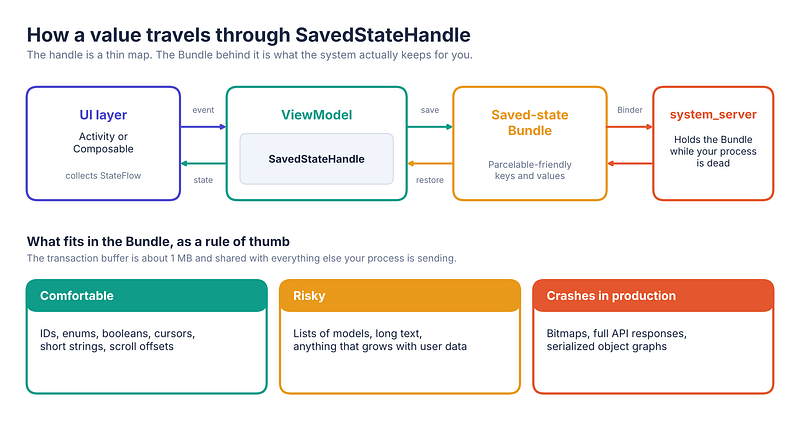
The most idiomatic way to use it is to expose state as a StateFlow backed by the handle, so there is one source of truth and no manual syncing:
@OptIn(FlowPreview::class, ExperimentalCoroutinesApi::class) // debounce, flatMapLatest
@HiltViewModel
class SearchViewModel @Inject constructor(
    private val savedStateHandle: SavedStateHandle,
    private val repository: ArticleRepository,
) : ViewModel() {

    // Survives rotation AND process death.
    val query: StateFlow<String> = savedStateHandle.getStateFlow(KEY_QUERY, "")

    val uiState: StateFlow<SearchUiState> = query
        .debounce(250)
        .flatMapLatest { q ->
            if (q.isBlank()) flowOf(SearchUiState.Idle)
            else repository.search(q).map(SearchUiState::Results)
        }
        .stateIn(
            scope = viewModelScope,
            started = SharingStarted.WhileSubscribed(5_000),
            initialValue = SearchUiState.Idle,
        )

    fun onQueryChange(value: String) {
        savedStateHandle[KEY_QUERY] = value
    }

    private companion object {
        const val KEY_QUERY = "query"
    }
}
Notice what is stored: the query string, which is tiny. The results are not stored. They are recomputed from the repository after restoration. That distinction is the whole discipline.
Navigation arguments arrive through the same handle, so a screen’s identity is restored for free:
@HiltViewModel
class ArticleViewModel @Inject constructor(
    savedStateHandle: SavedStateHandle,
    repository: ArticleRepository,
) : ViewModel() {

    private val articleId: String = checkNotNull(savedStateHandle["articleId"])

    val article: StateFlow<Article?> = repository.observe(articleId)
        .stateIn(viewModelScope, SharingStarted.WhileSubscribed(5_000), null)
}
Size constraints
The saved-state Bundle travels to the system over Binder, and that transaction buffer is roughly 1 MB, shared by every transaction your process has in flight. A rule of thumb that has served well: store IDs, enums, booleans, cursors and short strings, and think of the total as kilobytes, not megabytes.
The failure mode is nasty because it is data-dependent. It passes on your test account with five items and throws TransactionTooLargeException for the power user with five hundred. On some versions the crash happens when the app goes to the background, so it looks like a random crash with no obvious cause.
Other ways the handle bites:
- Unsupported types throw at write time. Putting a plain class into the handle fails immediately with an
IllegalArgumentException. Use primitives,Parcelable, orSerializable, and prefer@Parcelizefor your own types. The check is shallow, though: a list or map passes it even if its elements are not saveable, and that failure only surfaces later, when the Bundle is actually written out. Make sure what is inside a collection is saveable too. - Mutating after storing. If you store a mutable collection and then change it in place, the handle holds the same reference. Store immutable values and write a new one on each change.
- Lambdas, Contexts, Views. None of these can be saved. They will fail or leak.
5. rememberSaveable in Compose
remember survives recomposition. rememberSaveable additionally survives Activity recreation and process death, because it writes into the same saved-state machinery.
@Composable
fun CommentBox(onSend: (String) -> Unit) {
    var draft by rememberSaveable { mutableStateOf("") }

    Column {
        OutlinedTextField(
            value = draft,
            onValueChange = { draft = it },
            modifier = Modifier
                .fillMaxWidth()
                .testTag("draft"),
        )
        Button(onClick = { onSend(draft); draft = "" }) { Text("Send") }
    }
}
Strings, numbers and booleans work out of the box. For your own types, either mark them @Parcelize or provide a Saver:
data class Filter(val tags: Set<String>, val sort: Sort)

val FilterSaver: Saver<Filter, Any> = listSaver(
    save = { listOf(it.tags.toList(), it.sort.name) },
    restore = {
        @Suppress("UNCHECKED_CAST")
        Filter(
            tags = (it[0] as List<String>).toSet(),
            sort = Sort.valueOf(it[1] as String),
        )
    },
)

@Composable
fun rememberFilter(): MutableState<Filter> =
    rememberSaveable(stateSaver = FilterSaver) {
        mutableStateOf(Filter(emptySet(), Sort.Newest))
    }
A useful split: put business and screen state in the ViewModel with SavedStateHandle, and use rememberSaveable for local UI state that belongs to a single composable, such as whether a panel is expanded or a half-typed draft in a self-contained widget. rememberLazyListState already saves scroll position for you.
Gotchas worth knowing:
- Saved values are scoped to a position in the composition. Items in a lazy list should be keyed, or restoration can hand the wrong state to the wrong row.
- A
rememberSaveablevalue that quietly holds a large object has the same size problem as the handle, because it ends up in the same Bundle.
6. What not to put in saved state
The temptation is to dump the whole screen model into the Bundle so nothing is ever lost. Resist it.
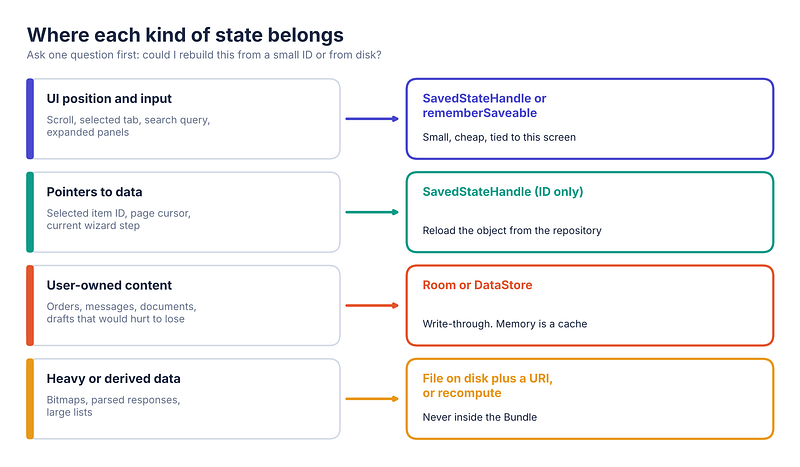
where-state-goes
Ask one question about each piece of state: can I rebuild this from a small ID or from disk? If yes, store the ID or write it to disk, and rebuild after restoration.
A common bug looks like this:
// Fragile: breaks after process death, and the failure depends on timing.
object Session {
    var currentUser: User? = null
}

class ProfileViewModel : ViewModel() {
    // The app restores into this deep screen. Session was set on the
    // login screen, in a process that no longer exists.
    val user: User = checkNotNull(Session.currentUser)
}
After process death the app comes back directly on the profile screen. The login screen never ran in this process, so Session.currentUser is null. The fix is to make the source of truth durable and read it through a repository:
class ProfileViewModel(
    userRepository: UserRepository, // backed by DataStore or Room
) : ViewModel() {
    val user: StateFlow<User?> = userRepository.currentUser
        .stateIn(viewModelScope, SharingStarted.WhileSubscribed(5_000), null)
}
For anything the user created, such as a draft message, an order in progress or an edited document, write it to Room or DataStore as it changes. Memory is a cache, not the record.
For heavy data like images, save the file to app storage and keep only its Uri in saved state. That works because your app owns the file. If the image came from a picker or another app's content provider, copy it into your own storage first: access to that Uri may not survive process death unless you took a persistable permission. A bitmap in the Bundle is a TransactionTooLargeException waiting for a device with a bigger camera sensor.
7. Testing it, so it stays fixed
Manual am kill catches bugs once. Tests keep them caught.
// Unit test: seed the handle as if the system restored it.
@Test
fun restoresQueryAfterProcessDeath() = runTest {
    val handle = SavedStateHandle(mapOf("query" to "kotlin"))
    val viewModel = SearchViewModel(handle, FakeArticleRepository())

    assertEquals("kotlin", viewModel.query.value)
}
// Compose test: save and restore composition state.
@get:Rule val composeRule = createComposeRule()

@Test
fun draftSurvivesRestoration() {
    val restorationTester = StateRestorationTester(composeRule)
    restorationTester.setContent { CommentBox(onSend = {}) }

    composeRule.onNodeWithTag("draft").performTextInput("hello")
    restorationTester.emulateSavedInstanceStateRestore()

    composeRule.onNodeWithTag("draft").assertTextEquals("hello")
}
Be honest about what these cover. They verify that your state round-trips through a Bundle. They do not clear your singletons, so a test like ActivityScenario.recreate() can pass for a screen that still crashes after a real process kill. Keep the manual am kill pass for that.
8. The “survives process death” checklist
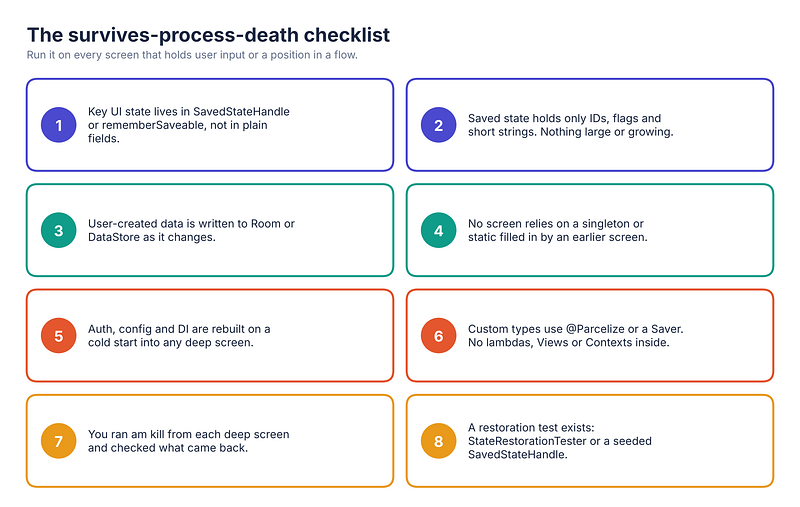
process-death-checklist
- Key UI state lives in
SavedStateHandleorrememberSaveable, not in plain fields. - Saved state holds only IDs, flags and short strings. Nothing large or growing.
- User-created data is written to Room or DataStore as it changes.
- No screen relies on a singleton or static filled in by an earlier screen.
- Auth, config and dependency setup are rebuilt on a cold start into any deep screen.
- Custom types use
@Parcelizeor aSaver. No lambdas, Views or Contexts inside. - You ran
am killfrom each deep screen and checked what came back. - A restoration test exists, using
StateRestorationTesteror a seededSavedStateHandle.
🔚 Closing thought
The mental model that makes all of this easier: your process is disposable, and the user’s progress is not. Keep the ephemeral UI position in saved state, keep the user’s data on disk, and keep everything else reconstructible from those two. Then, whether the user comes back in ten seconds or ten minutes, the app picks up where they left off.
📱 New to Jetpack Compose? Start Here
If you’re coming from the classic Android View system — XML layouts, findViewById, RecyclerView adapters — and want a clear, no-jargon path into Jetpack Compose, I recommend "Learning Jetpack Compose: Your Practical Guide from the Android View System to Modern Declarative UI." Every chapter starts from something you already know and shows its Compose equivalent side by side, building up to a full capstone: a real Notes app. Once you're comfortable and want to go deeper — the Composition tree, recomposition internals, the runtime itself — "Mastering Jetpack Compose Internals" is the natural next step.
- E-book: Available on Google Play
- Kindle Edition: Available on Amazon
- Topmate: Available on Topmate
- Also available in Paperback & Hardcover
Originally published on Medium.
About the author
- Android Engineer & Kotlin Advocate. 🚀 Deep dives into Jetpack Compose, Coroutines, and Clean Architecture. Turning complex code into scalable solutions. 🛠️✨
Comments
Join the discussionNo comments yet. Be the first to comment.